Let customers upload a file at the WooCommerce checkout
Artwork, prescriptions, permits, reference photos — how to add a secure file-upload field to the WooCommerce checkout, with the file attached to the order. Free, on classic and Block checkout.
Print shops need the artwork. Pharmacies need the prescription. Engravers need the logo, tour operators the permit, repair services a photo of the damage. When the checkout can’t take a file, all of this moves to email — where it arrives late, unattached to the order, and someone has to match “the PDF from Monday” to order #4127 by hand.
Here’s how to take the file at checkout and keep it on the order — for free, on both the classic and the Block checkout.
A file field, where the order happens
Alovio Checkout Fields ships a file upload field type (one of 13 field types, all free). Drop it on the checkout from the builder, name it, and choose where it renders — like any other field:
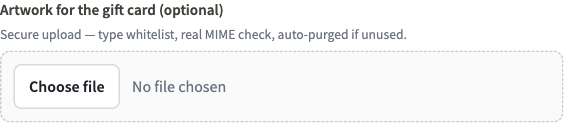
The file uploads on selection, not on submit — so a slow connection uploads while the customer fills in the rest, and a failed file surfaces before the order is placed, not after.
Built like it expects hostile input
An upload endpoint on a public checkout is a serious attack surface, so this one is hardened by default:
- Extension whitelist (jpg, jpeg, png, pdf — filterable) and real MIME verification, not just a filename check.
- Size cap (5 MB default, filterable) and a per-IP rate limit on the endpoint.
- Files land under randomized names — no guessable URLs.
- An upload that never becomes an order purges itself after 48 hours; nothing accumulates.
Attached to the order, where your team looks
When the order is placed, the upload is attached to it: the admin order screen shows a “View file” link next to the field’s value, so fulfilment opens the artwork from the same screen they process the order on. No inbox archaeology.
Show it only when it’s needed
The file field obeys the same conditional logic as every other field — so you can show the upload only when it applies: when the cart contains the engraving product, when “Is this a gift?” is Yes (a photo for the gift card), when a specific shipping method needs a permit. One rule in the builder, no code.
See it live
The Alovio for WooCommerce demo has this exact setup — open the checkout, answer “Is this order a gift?” with Yes, and the artwork upload appears with the drop-zone picker. Install Alovio Checkout Fields from WordPress.org — the file field, the fees and all 13 field types are in the free plugin — and start with the getting-started guide. If you also charge for extras at checkout, see how to add a fee to the WooCommerce checkout.