How to add a fee to the WooCommerce checkout (free)
Gift wrapping, priority processing, small-order surcharges — here is how to let any checkout field add a fee to the WooCommerce order total, live, without code or a paid plugin.
Plenty of stores need to charge a little extra at checkout: gift wrapping, priority processing, a
rush-delivery option, a handling surcharge below a minimum order. WooCommerce has a add_fee() API
for developers, but out of the box there’s no way for a store owner to say “this checkbox costs
$8” — and the plugins that do it usually park the feature in a paid tier.
Here’s how to do it for free, with fees that update the order total live on both the classic and the Block checkout.
Fees that belong to fields
The cleanest mental model is the one Alovio Checkout Fields uses: a fee isn’t a separate rules engine — it’s a property of a field. Add a checkbox, give it a price, and when the customer engages the field, the fee lands in the totals. Three pricing modes cover the usual cases:
- Fixed — a flat amount. Gift wrapping, +$8.00.
- Per unit — a number field multiplied by its value. Extra pallets × $15.
- Percentage of subtotal — scales with the cart. Priority processing, +10%.
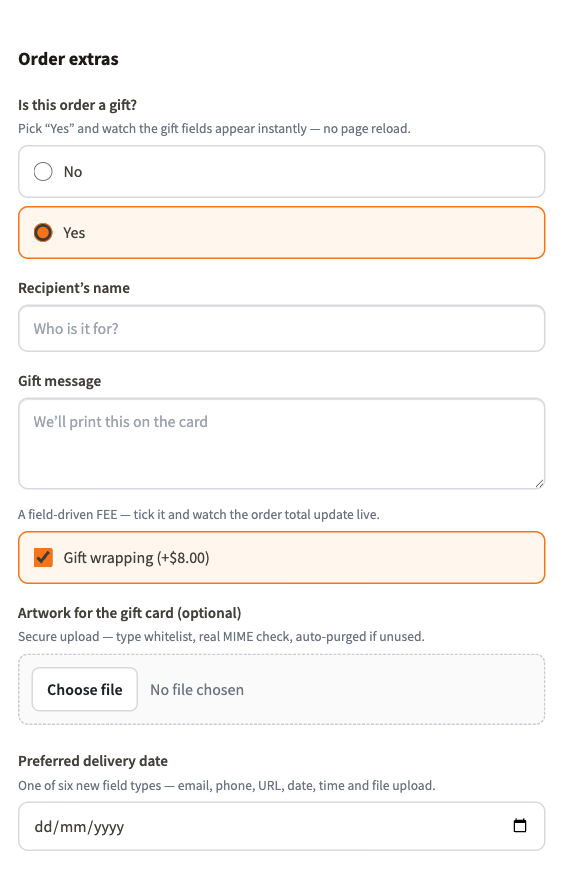
The total updates live
When the customer ticks a priced field, the order review re-totals on the spot — a row appears carrying that field’s name and its fee, no page reload. That immediacy matters: surprise costs at the payment step are a classic abandonment trigger, and a live total keeps the price honest the whole way down. A fee per field rather than one lump sum matters for the same reason: “Shipping speed: Express (next day) — $9.50” tells the customer what they chose and what it cost, which “Checkout options — $15.50” never did.
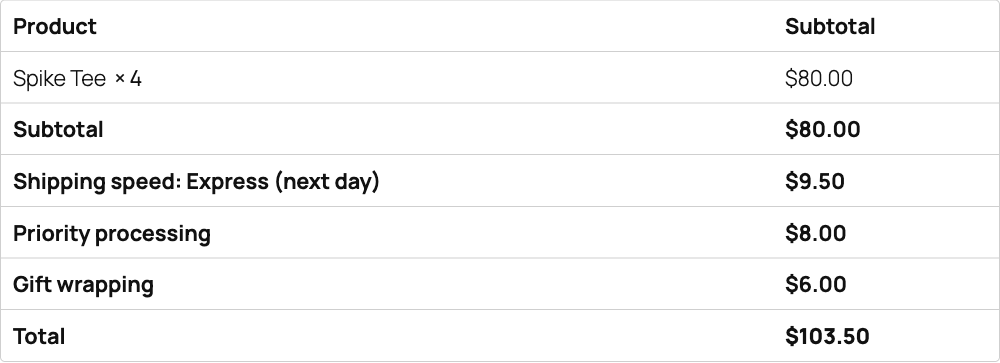
Fees + conditional logic compose
Because the fee lives on the field, it obeys the field’s conditional logic. A “Gift wrapping” fee that only exists when the customer answered “Is this order a gift?” with Yes can never be charged out of context — hide the field and its fee goes with it. The same works with cart contents, customer role, shipping method, payment method or country: a card-processing surcharge only when a specific payment method is selected, a remote-area handling fee only for certain countries, and so on.
Setting it up
In the builder (WooCommerce → Checkout Fields), add or select a field, open its Fee tab, pick the mode and the amount, and save. Placement, width, required state and conditions all live on the same field. There’s no separate fees screen to keep in sync — and no Pro version to buy: since the 1.2 release the plugin is 100% free, fees included.
See it live
There’s a working store at the Alovio for WooCommerce demo — open the checkout, toggle “Is this order a gift?”, tick Gift wrapping and watch the total jump by $8 with a fee row, instantly. When you’re ready, install Alovio Checkout Fields from WordPress.org and start with the getting-started guide. For the conditional-logic side, see conditional checkout fields.