How to set ZIP codes for locations in Booknetic
Booknetic has no built-in postcode-to-branch matching. Here is how to assign ZIP codes to each location so customers are routed to the right branch automatically.
If you run a multi-branch business on Booknetic, the Location step asks the customer to pick a branch from a list. That works with two or three locations. With a dozen, it’s guesswork — people choose the wrong branch, or bounce because they can’t tell which one covers their area. What you actually want is simple: the customer enters their postcode, and Booknetic shows the branch that serves it.
Booknetic core has no ZIP-to-location matching out of the box. Here’s how to add it.
Map each location to the ZIP codes it serves
The idea is to give every location a list of the ZIP / postal codes it covers. Once Booknetic knows
that SW1, EC1, W1… belong to your London branch and M1, M2, M3… to Manchester, it can route any
customer to the right one from a single field.
That mapping is exactly what the Zip Lookup add-on adds: it stores a set of postal codes per location and puts a “Search by ZIP code” box on the booking panel’s Location step.
Set it up two ways
Per location. Open a location and add the postal codes that branch serves — one by one or pasted in. Fine for a handful of branches.
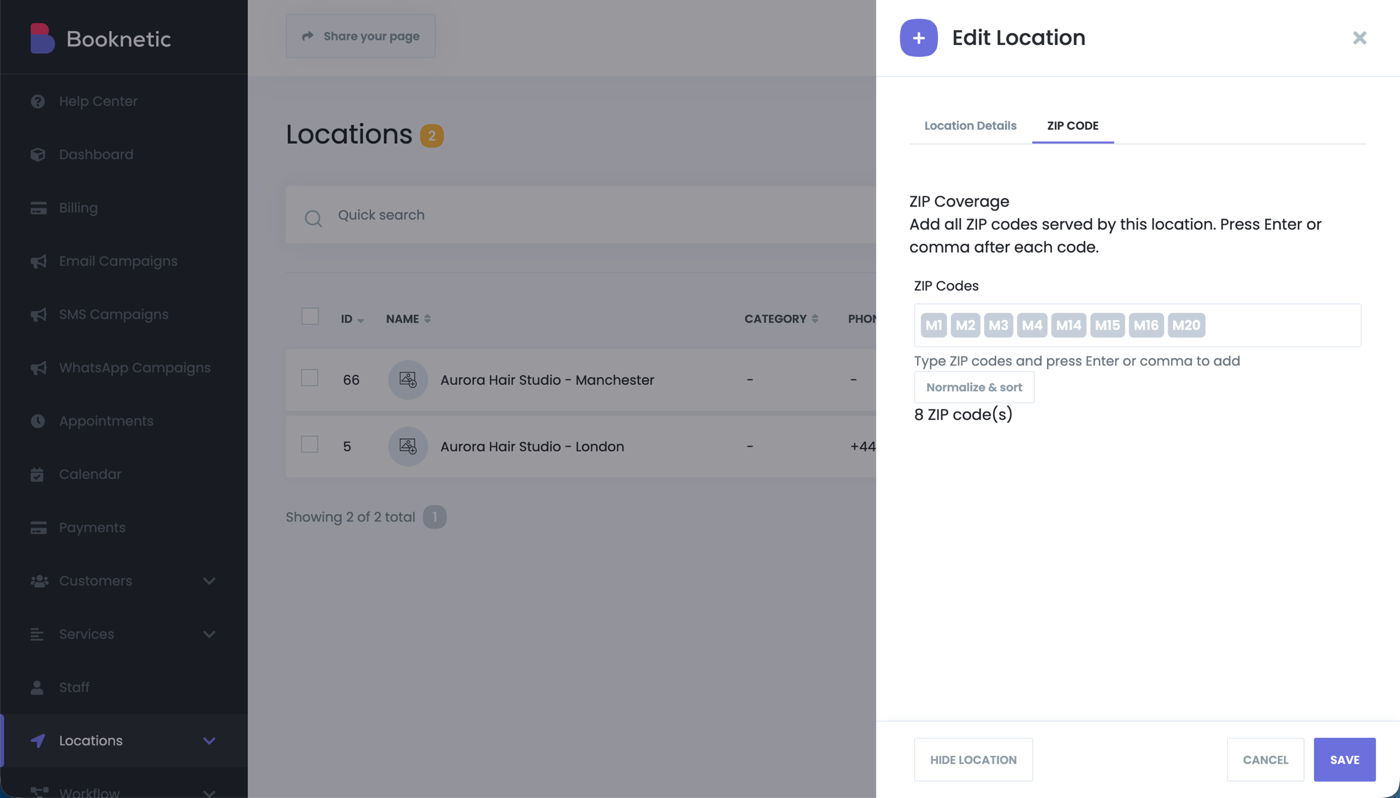
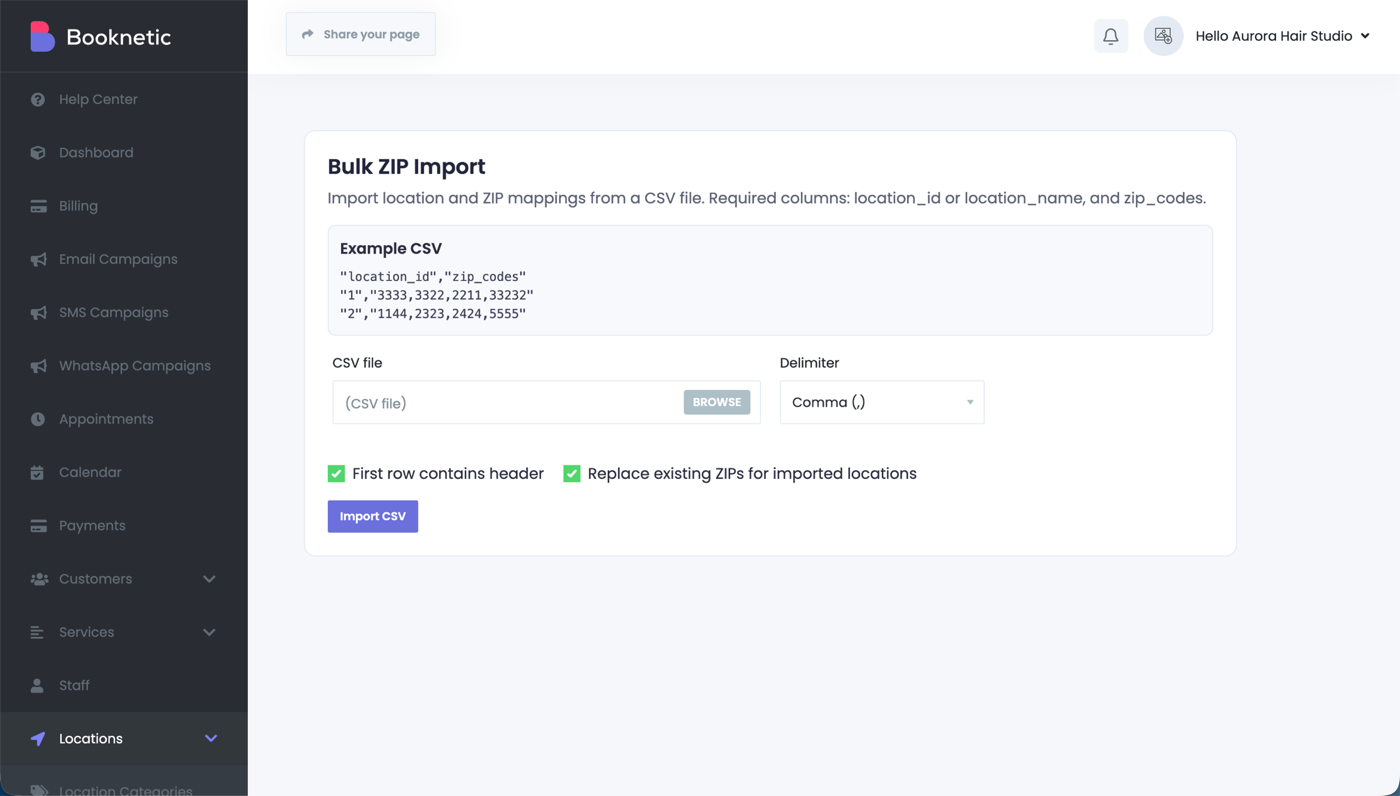
Bulk import. For a large coverage area, upload a CSV. Two columns — location_id (or the location
name) and zip_codes — map hundreds of postcodes across every branch in one go, with a “replace
existing” option so re-imports stay clean.
That’s the whole admin setup. No core files are touched and nothing changes in Booknetic’s own tables — the codes live in the add-on’s own table, so it’s safe across updates and you can switch it off any time.
What the customer sees
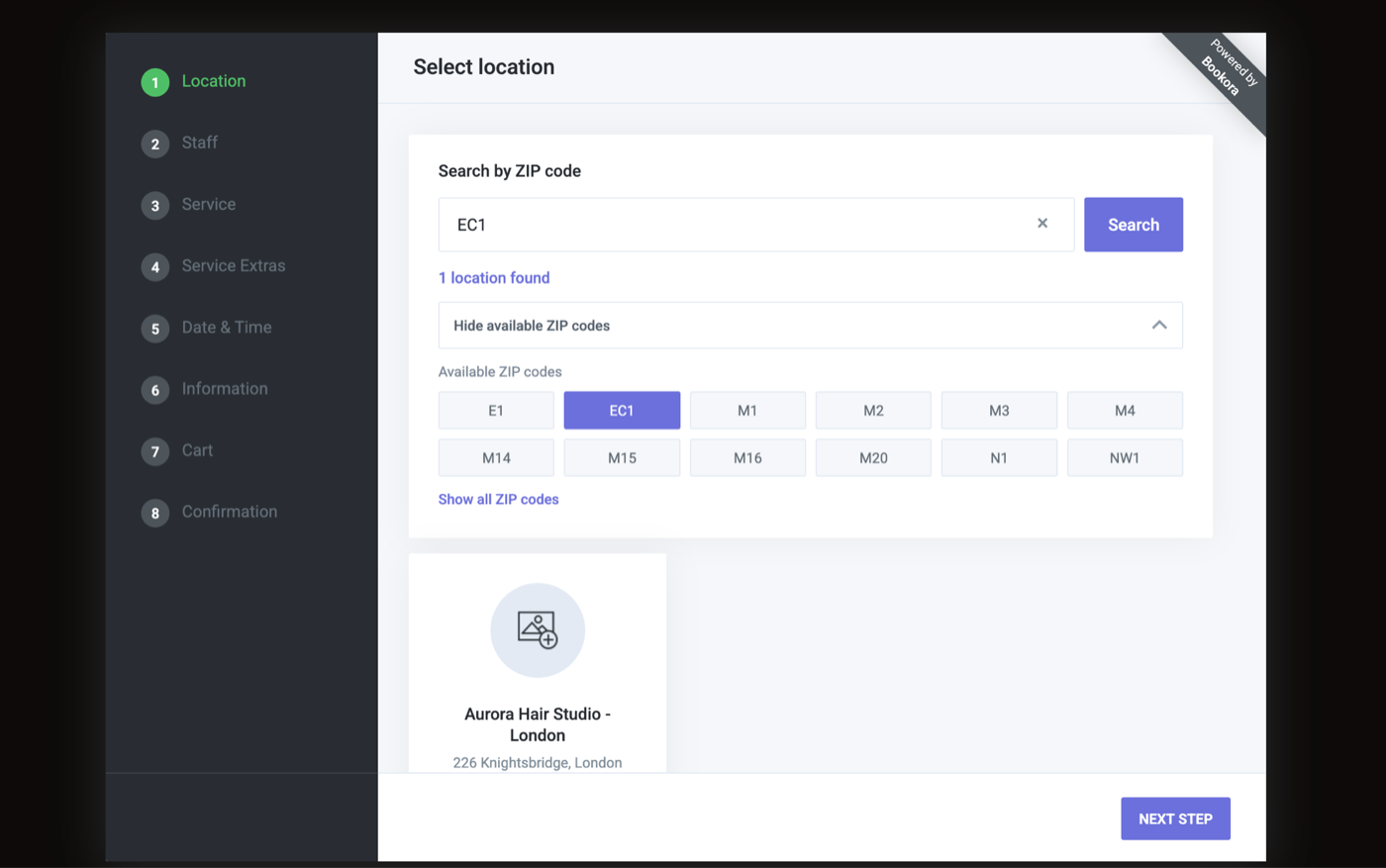
On the booking panel, the Location step now leads with Search by ZIP code. The customer types their postcode, hits search, and the branch that covers it is selected — the others drop away. A “show available ZIP codes” list lets them see your coverage at a glance. One field instead of a long list of branch names — fewer wrong picks, fewer drop-offs.
Works on Booknetic and Booknetic SaaS
The same add-on runs on regular Booknetic and on Booknetic SaaS, where ZIP coverage is scoped per tenant — every workspace manages its own branches and postcodes.
See it live
There’s a working booking with the ZIP search wired up on the
live demo — pick the Location step and try a
code like SW1. The Bulk ZIP Import screen
shows the setup side. The setup guide walks through assigning codes
and the CSV import, and you can grab Zip Lookup from the store when you’re ready.